Choose your IPTV app
We recommend IBO Player Pro for the best experience. It’s the most stable IPTV player around and its paid licence comes free with your IPTV subscription. You can also use IPTV Smarters, TiviMate or any app you already like.
Your Nordic IPTV subscription works with almost every IPTV app out there. We recommend IBO Player Pro because it’s the most stable player we’ve tested, and we gift you its paid licence free with every plan. Pick your device below and follow the exact steps, screenshots included.
Setting up a Nordic IPTV subscription sounds technical. Ours isn’t. Here’s the whole journey from order to watching.
We recommend IBO Player Pro for the best experience. It’s the most stable IPTV player around and its paid licence comes free with your IPTV subscription. You can also use IPTV Smarters, TiviMate or any app you already like.
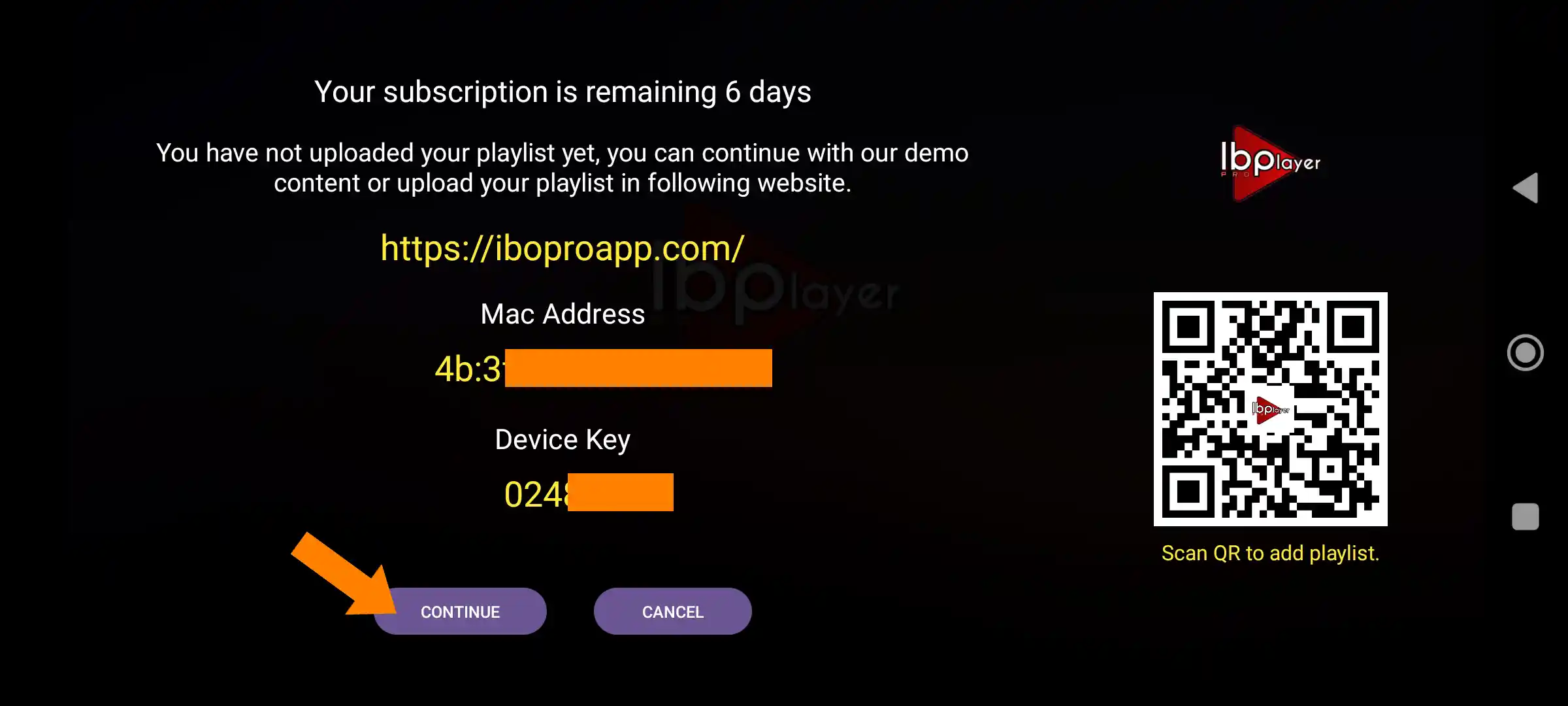
Open the app and a popup shows your MAC Address and Device Key. Type them out or just snap a photo of the screen and send it over on Telegram. Our team handles the rest. Using a different app? We’ll send your Xtream Codes login instead.
We activate your Nordic IPTV subscription remotely. Restart the app and you’re streaming 25,000+ live channels and 190,000+ movies and series on your screen.
IBO Player Pro normally charges for its full version. Not with us. The moment your Nordic IPTV account goes live, we activate a full paid licence on your device for free. No app fee to hunt down, no second payment to remember, one less bill in your inbox.
Your iptv subscription works in almost every player out there. These are the three we get asked about most, in the order we’d install them ourselves.
The most stable player we’ve tested on Nordic connections. Clean layout, quick channel zapping and a full TV guide. Its paid licence normally costs extra, we activate it for you free with every Nordic IPTV subscription.
A slick player with a lovely channel guide and smooth surfing. Pairs perfectly with your Nordic IPTV login through Xtream Codes. Its premium unlock is a separate purchase from the app itself.
If you already use it and feel at home there, no problem at all. Send us a message and we’ll share your login details, you’ll be watching in minutes.
Whichever app you pick, setup help is included with every plan. That’s the point of a proper premium Nordic IPTV service.
Pick your device below for the complete step-by-step Nordic IPTV setup guide. Every tutorial includes real screenshots and takes about five minutes.
Send one screen photo on Telegram. Our Nordic team will show you the next tap and stay with you until playback starts.
IBO Player Pro isn’t available directly on the Firestick app store, so we’ll use a free app called Downloader to install it. This is called sideloading. It’s safe, simple and takes about 3 minutes.
From the Firestick home screen, navigate to the Find option using your remote.
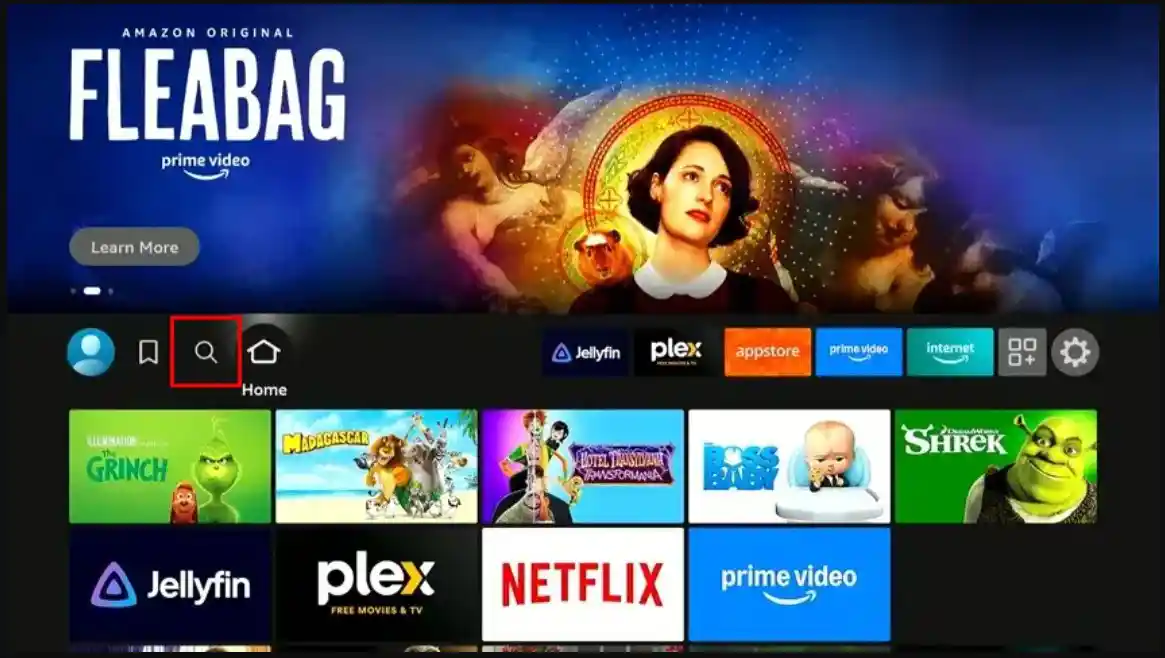
Select Search to open the Firestick search bar.
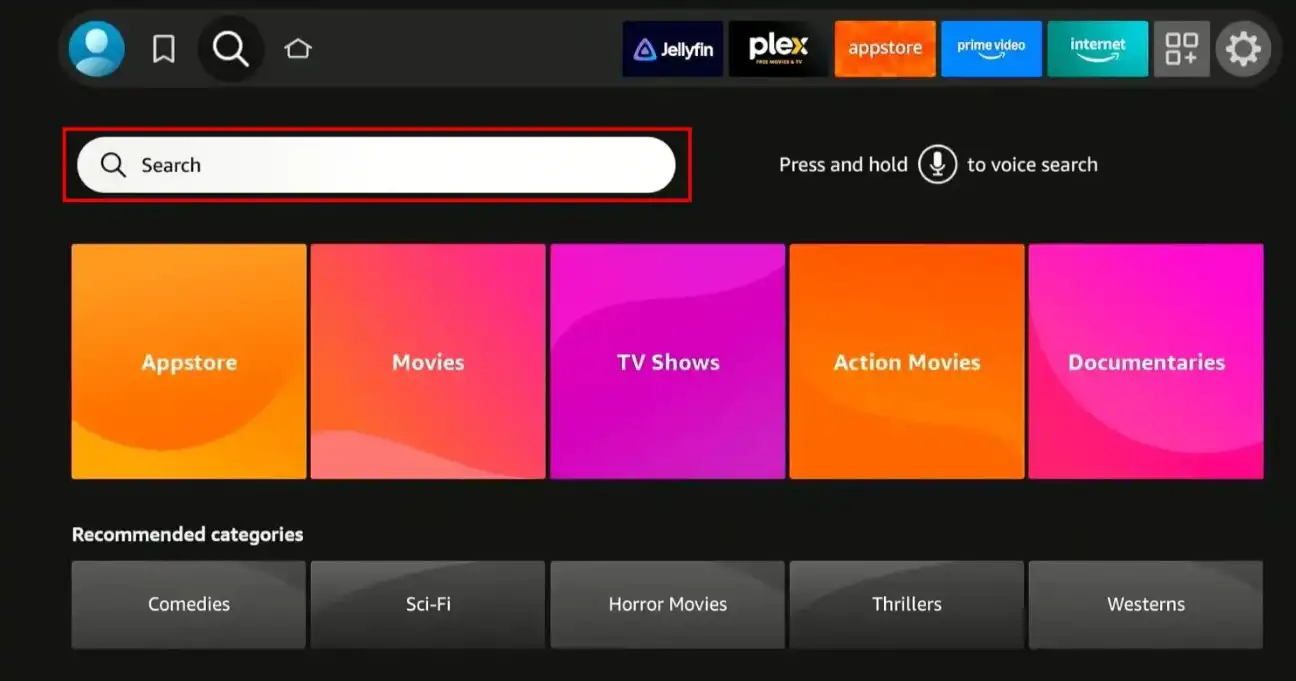
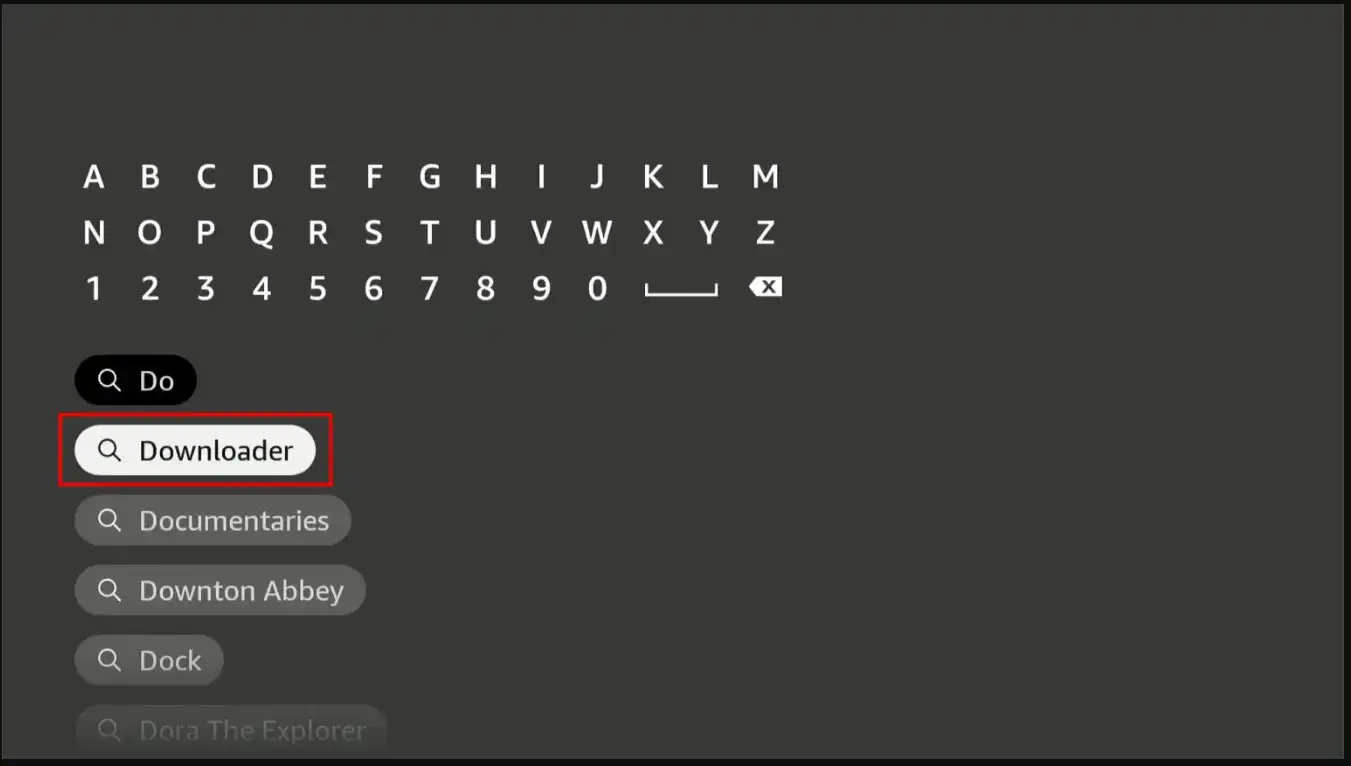
Type Downloader in the search bar. This is the free tool we’ll use to install IBO Player Pro on your Firestick. Download and install it.
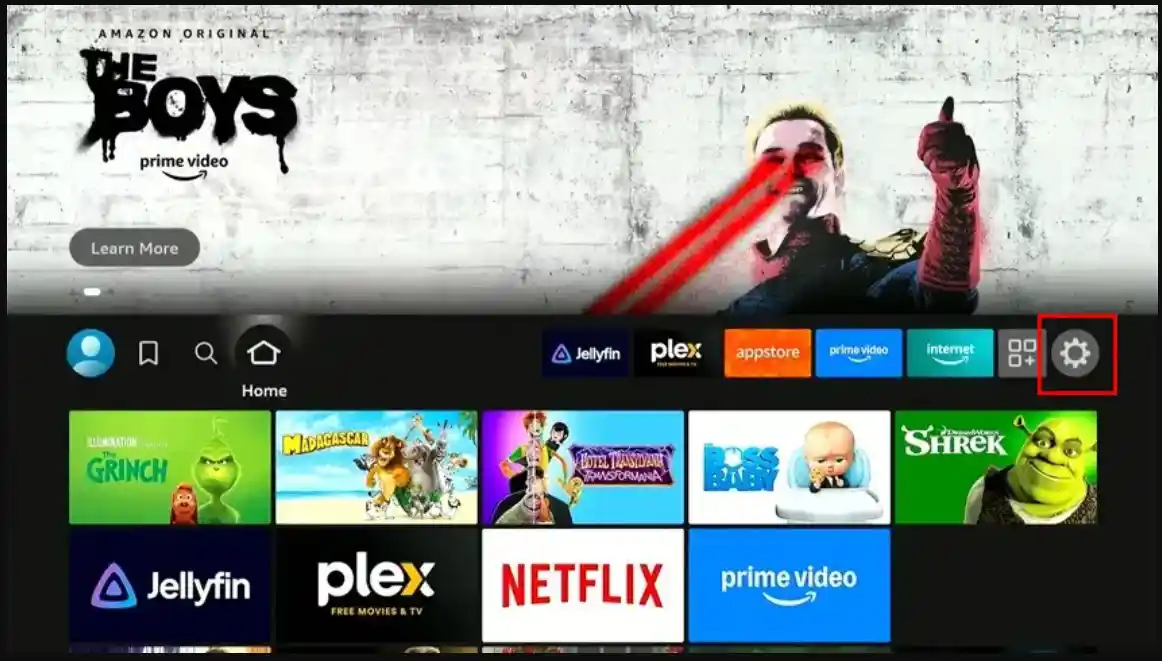
Go back to the Firestick home screen and open Settings from the top menu.
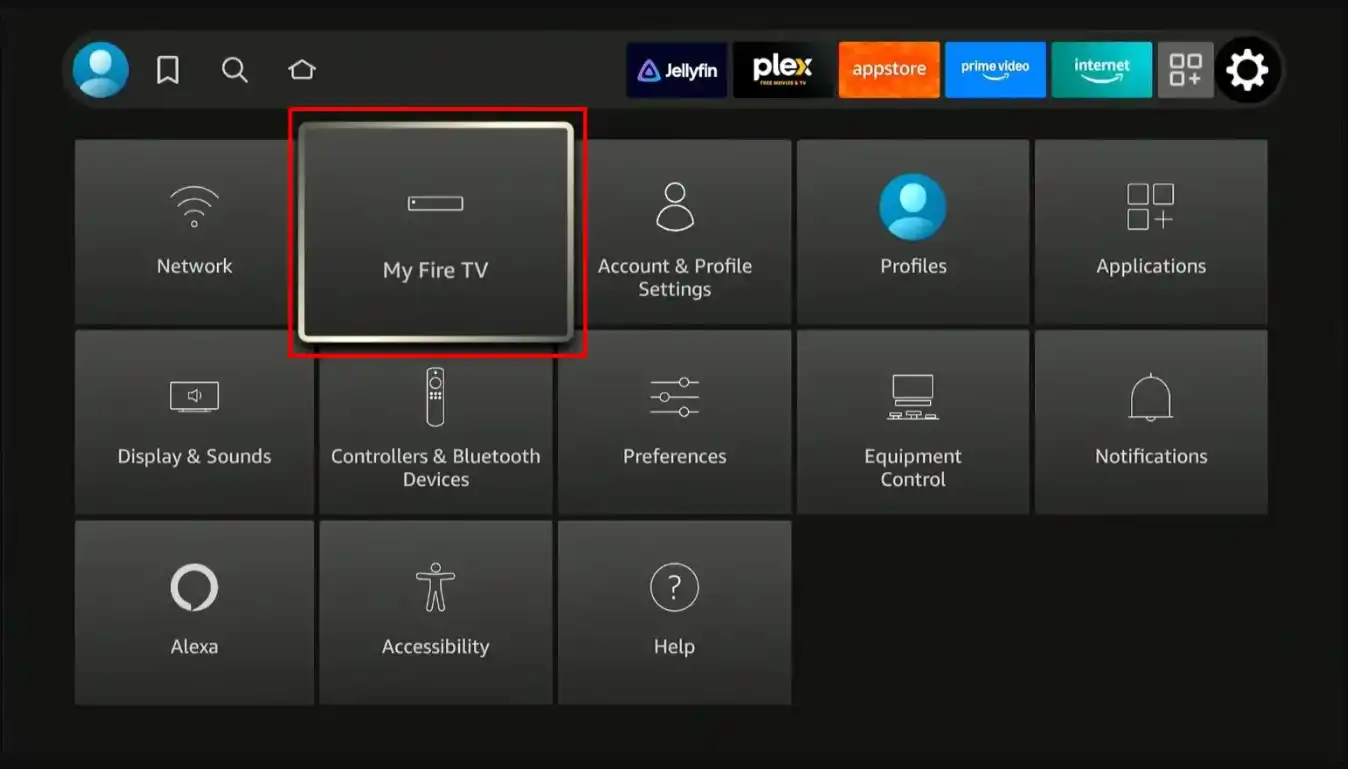
Inside Settings, scroll to My Fire TV and select it.
Select Developer Options from the list.
Can’t see Developer Options? Go to Settings, open My Fire TV, then About, and click on your Fire TV Stick name 7 times. This will unlock Developer Options.
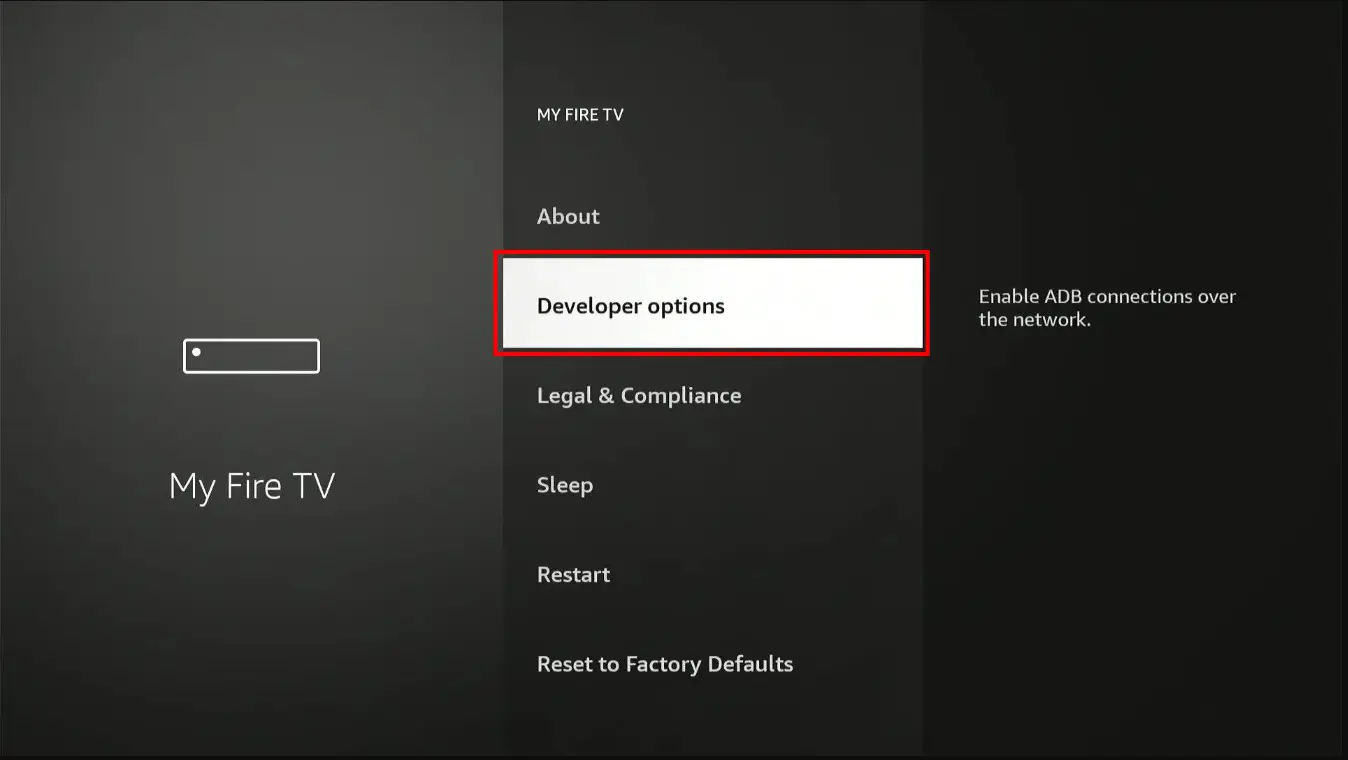
Select Install Unknown Apps from the Developer Options menu.
Older Firestick interface? If you’re on an older version, this option may be called Apps from Unknown Sources instead.
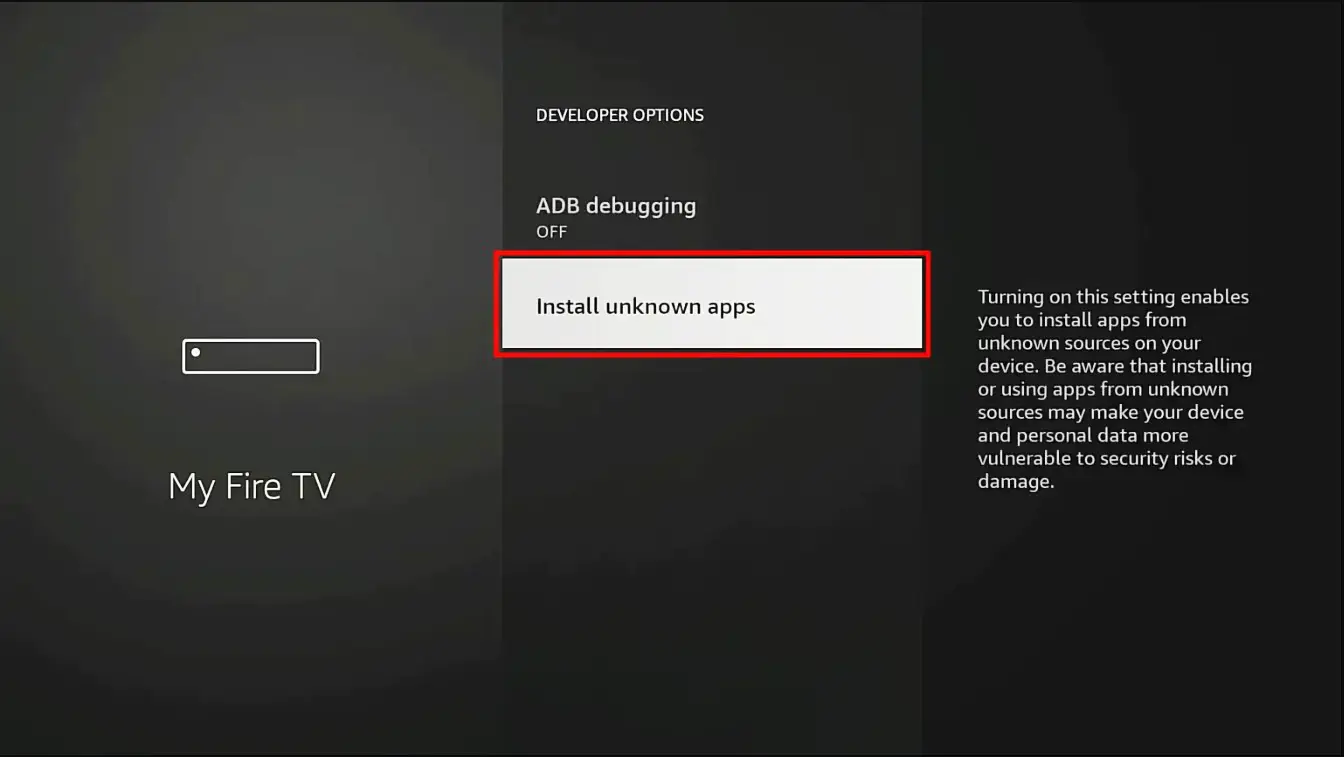
Find the Downloader app in the list and toggle it ON. This allows Downloader to install apps on your Firestick.
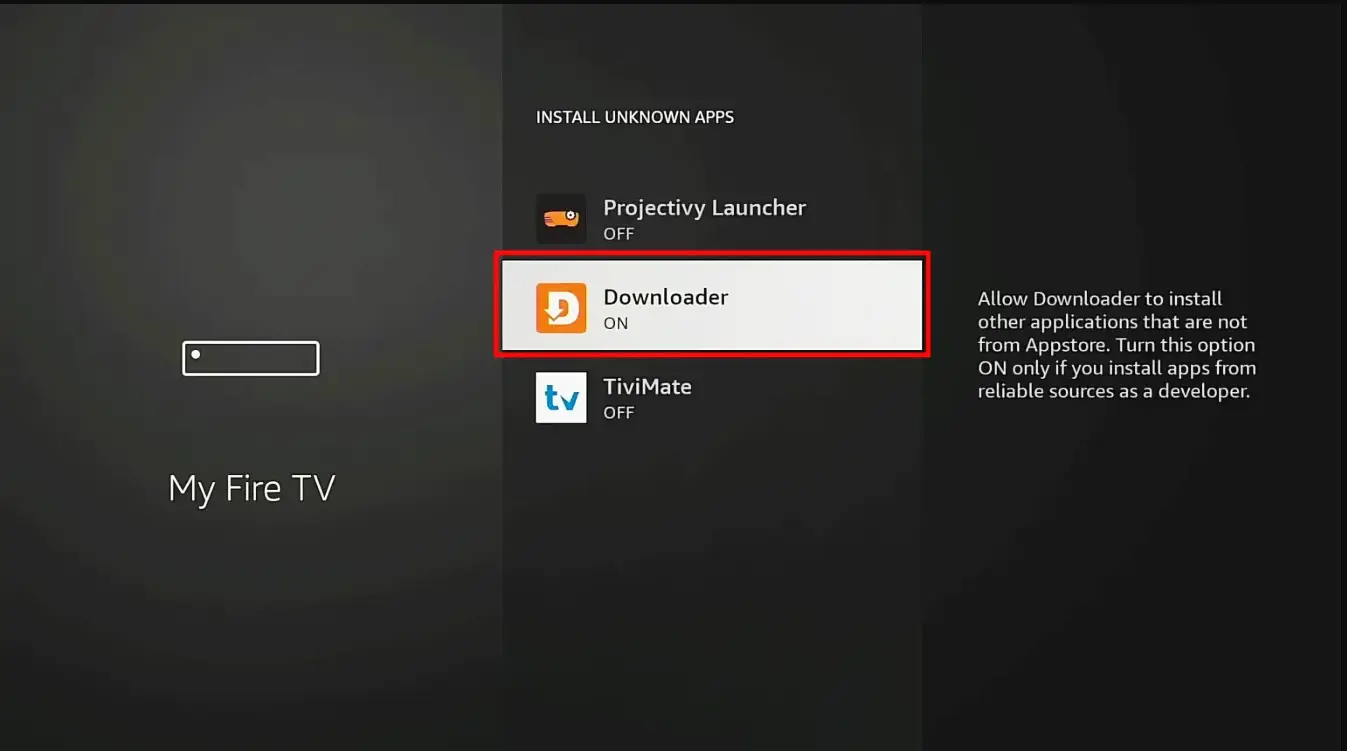
Launch the Downloader app. If any prompts appear on first launch, dismiss them. When you see the main screen, tap the URL text field.
Using the on-screen keyboard, type one of these Downloader codes:
Then press OK or Go to start the download.
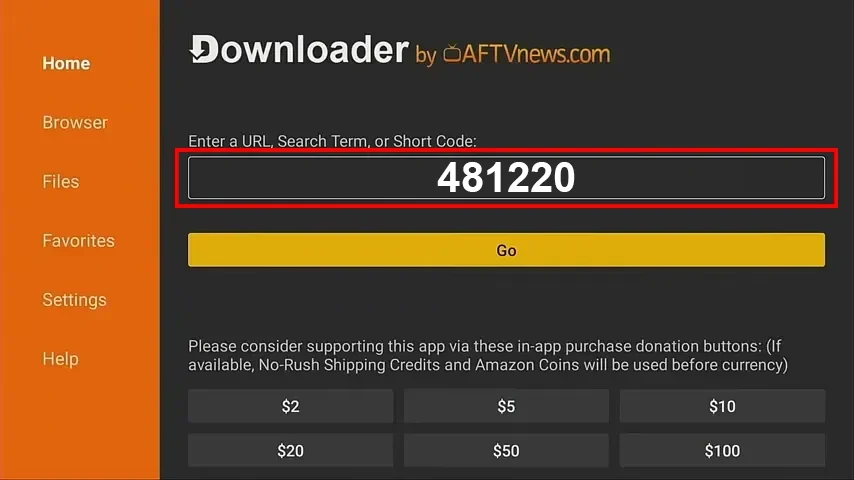
Wait for the IBO Player Pro file to download. Once finished, Downloader will automatically prompt you to install. Tap Install, then Open when the installation is complete.
When IBO Player Pro opens for the first time, a popup will display your MAC Address and Device Key. Send those details to us on Telegram, WhatsApp, or by email, you can type them out or just snap a photo of the screen. Our team will activate your Nordic IPTV subscription remotely.
Prefer to set it up manually? You can also enter your Xtream Codes credentials yourself. But for a smooth, guaranteed activation, we recommend letting our team handle it.
On your Android device (phone, tablet, Android TV or Android box), open the Google Play Store and search for IBO Pro Player. Download and install it.
Direct link to Play StoreImportant: there are several apps with similar names. Make sure you install the correct, original IBO Player app, it should look like the icon shown here.
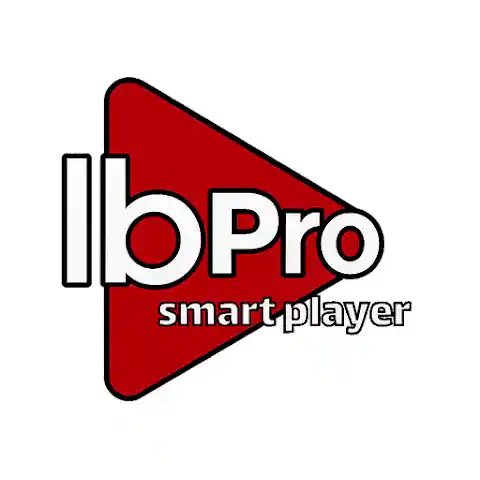 This is the official icon to look for in the Play Store.
Launch IBO Player Pro. A popup will show your MAC Address and Device Key. Send them to us on Telegram, WhatsApp, or by email, type them out or snap a photo of the screen. Our team will activate your Nordic IPTV subscription remotely.
Prefer to set it up manually? You can also enter your Xtream Codes credentials yourself. But for a smooth, guaranteed activation, we recommend letting our team handle it.
On your iPhone, iPad, Apple TV or Mac, open the App Store and search for IBO Pro Player. Download and install it.
Direct link to App StoreImportant: multiple apps use similar names. Make sure you download the correct, original version, check the icon matches the one shown here.
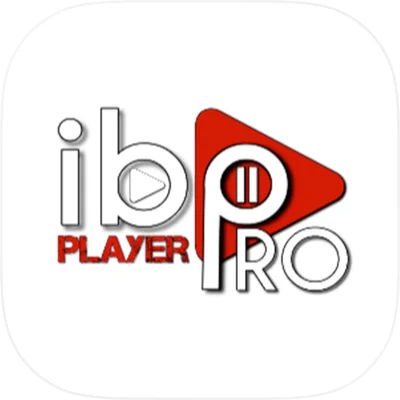 This is the official icon to look for in the App Store.
Launch IBO Player Pro. A popup will show your MAC Address and Device Key. Send them to us on Telegram, WhatsApp, or by email, type them out or snap a photo of the screen. Our team will activate your subscription remotely.
Prefer to set it up manually? You can also enter your Xtream Codes credentials yourself. But for a smooth, guaranteed activation, we recommend letting our team handle it.
On your Samsung Smart TV, open the Samsung Apps store and search for IB Player Pro. Download and install it.
Important: several apps have similar names. Make sure you install the original IBO Player Pro, check the icon matches the one here.
 This is the official icon to look for on Samsung Apps.
Launch the app. A popup will display your MAC Address and Device Key. Send them to us on Telegram, WhatsApp, or by email, you can type them out or snap a photo of the screen. Our team will activate your subscription remotely.
Prefer to set it up manually? You can also enter your Xtream Codes credentials yourself. But for a smooth, guaranteed activation, we recommend letting our team handle it.
On your LG Smart TV, open the LG Content Store (or LG Apps) and search for ibPlayer Pro. Download and install it.
Direct link to LG Content StoreImportant: multiple apps use similar names. Make sure you download the original version, the icon should match the one shown here.
This is the official icon to look for on the LG Content Store.Launch the app. A popup will display your MAC Address and Device Key. Send them to us on Telegram, WhatsApp, or by email, you can type them out or snap a photo of the screen. Our team will activate your subscription remotely.
Prefer to set it up manually? You can also enter your Xtream Codes credentials yourself. But for a smooth, guaranteed activation, we recommend letting our team handle it.
Hisense TVs run three different operating systems, and each one has its own app store. Find your model below and follow that part only. On every store, search for IB Player, not IBO. Not sure which system your TV runs? Send us a photo of your home screen on Telegram and we’ll point you to the right steps.
Press the Home button on your Hisense remote, go to the Apps section and open the Google Play Store (on some models it’s called Get More Apps). You’ll need a stable internet connection and a Google account signed in.
Select the Search icon at the top and type IB Player. Pick the correct, original app from the results and click Install.
This is the official icon to look for.Once the download completes, select Open, or find the app later in your main Apps row.
Press Home on your remote, scroll down and select the App Store (or My Apps, then App Store). VIDAA models don’t use Google Play, they have their own built-in store.
Use the Search bar at the top and type IB Player. Highlight the app, press OK, then choose Install.
Good to know: VIDAA doesn’t support sideloading or Android APK files. If an app isn’t listed in the VIDAA App Store it can’t be installed, so message our team on Telegram and we’ll set you up with the best option for your model.
A green checkmark appears once it’s installed. You can place the app shortcut wherever you like on your home screen, then open it.
Press Home and scroll down the left-hand menu to Streaming Store (or Store, then Apps). Your TV needs to be logged into a free Roku account to download anything.
Select Search and type IB Player. Highlight it in the results, press OK, and select Add App (Roku calls apps Channels, so it may say Add Channel).
Confirm any on-screen prompts. The app downloads and appears at the very bottom of your home screen grid.
Open the app. A popup will display your MAC Address and Device Key. Send them to us on Telegram, WhatsApp, or by email, you can type them out or just snap a photo of the screen. Our team will activate your Nordic IPTV subscription remotely and walk you through anything else, baby steps.
Download IBO Player Pro for Windows directly from the Microsoft Store. Search for IBO Player Pro and install it.
Direct link to Microsoft StoreLaunch the app. A popup will display your MAC Address and Device Key. Send them to us on Telegram, WhatsApp, or by email, you can type them out or snap a photo of the screen. Our team will activate your subscription remotely.
Prefer to set it up manually? You can also enter your Xtream Codes credentials yourself. But for a smooth, guaranteed activation, we recommend letting our team handle it.
Once our team confirms your IPTV subscription is active, here’s how to start watching.
If you sent us your MAC Address and Device Key and we’ve confirmed activation, this is all you need to do:
Close IBO Player Pro completely and reopen it. If the app is already open, tap Reload on the home screen to refresh your content.
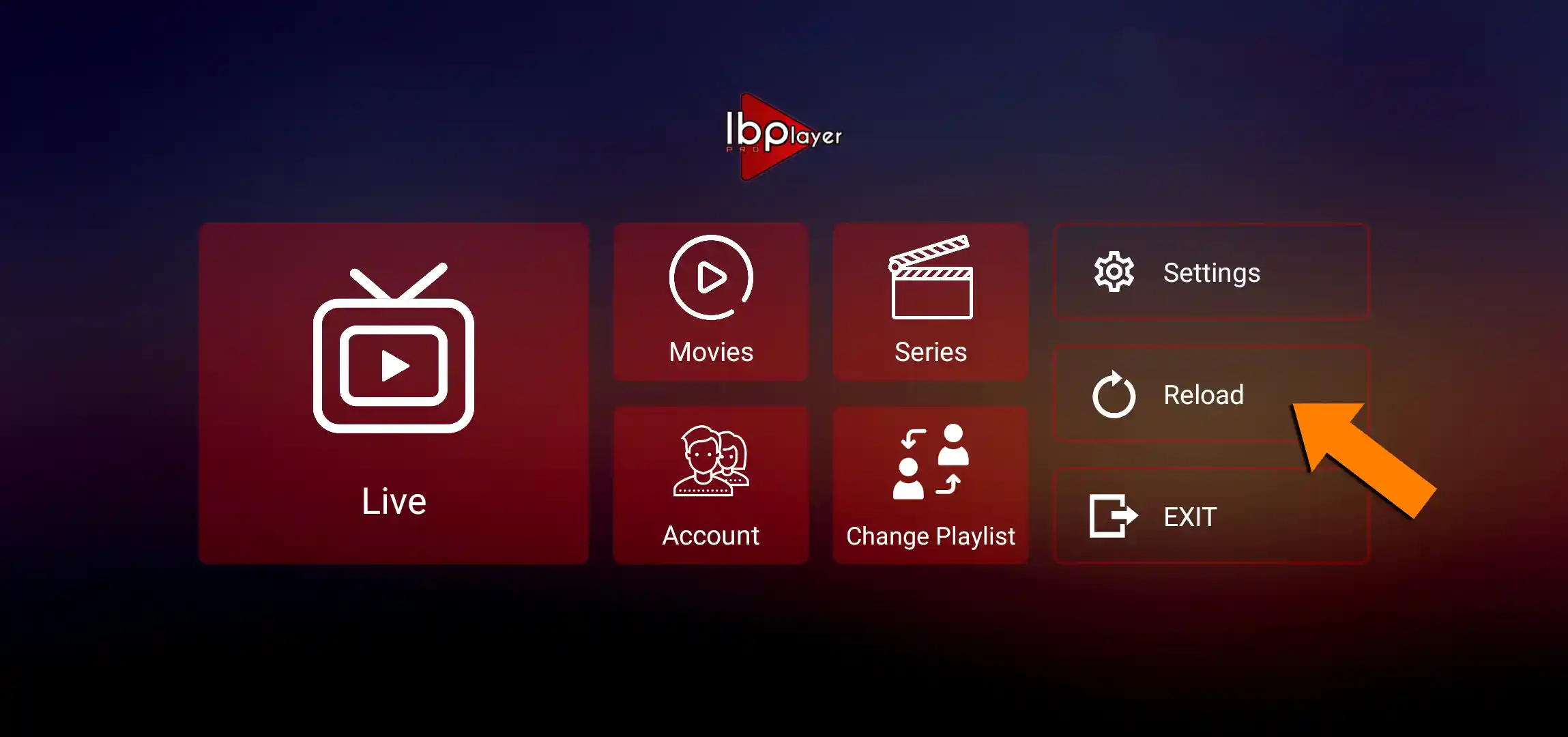
Go to Change Playlist and select the Nordic IPTV playlist. Your channels and content will load automatically.
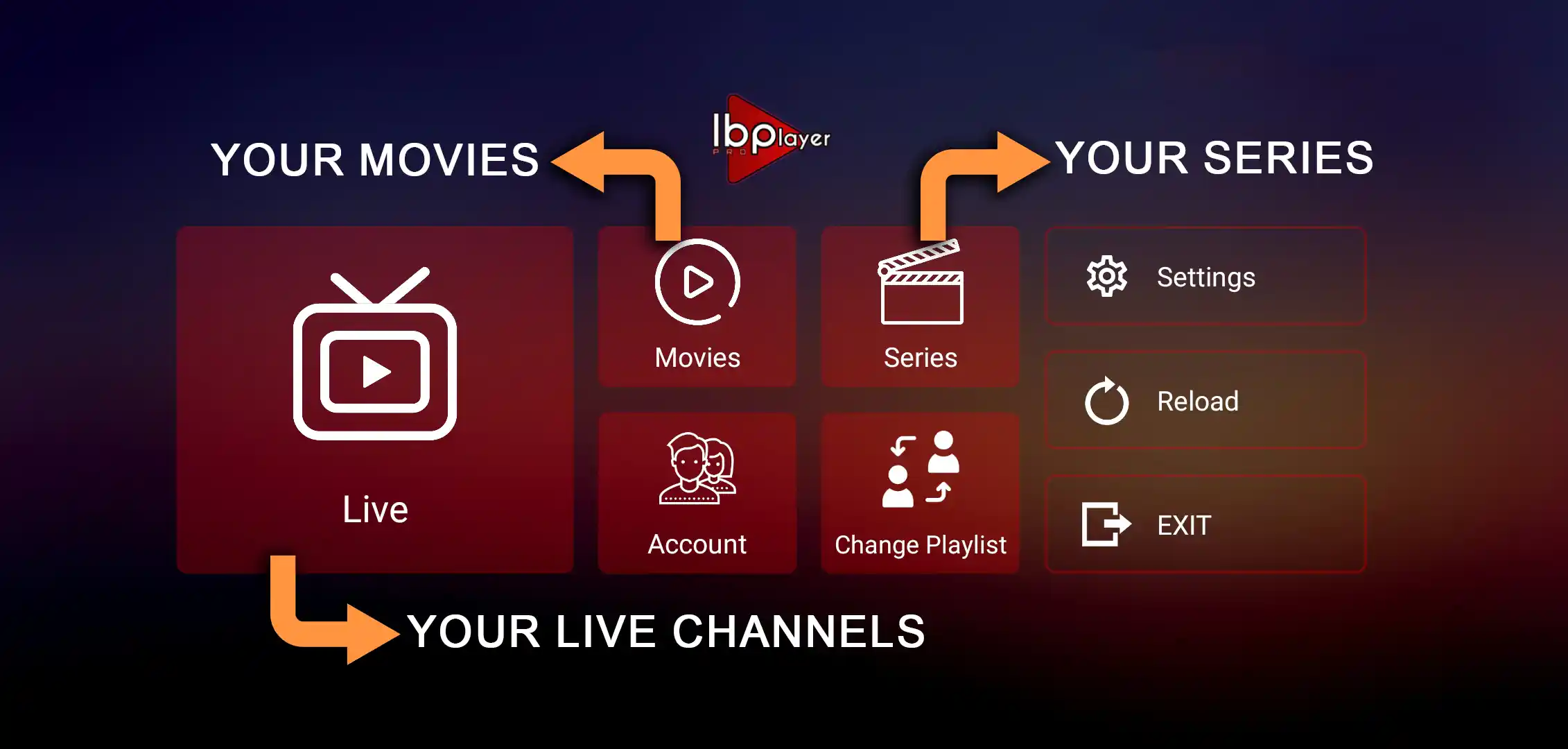
You’ll land on the IBO Player Pro home screen with everything ready. Live TV holds 25,000+ channels organised by country and category, Movies is the full on-demand library, and Series has complete season and episode listings. That’s it, you’re streaming.
If you prefer to configure IBO Player Pro yourself using the Xtream Codes login details we sent to your email, here’s how:
From the IBO Player Pro home screen, tap Change Playlist.
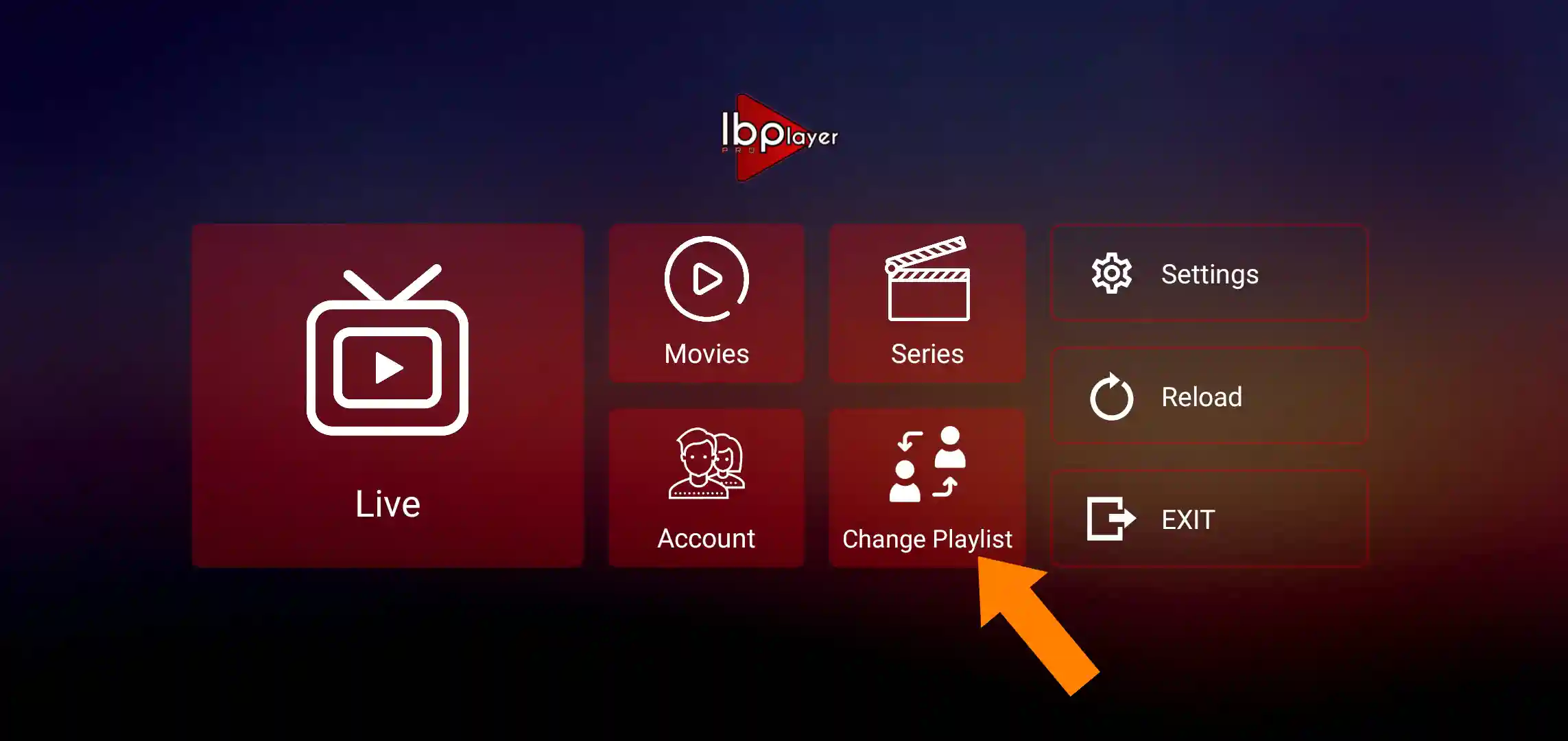
Tap Add Playlist, then select the Xtream-Codes-API tab. Enter the server URL, username and password from the email we sent you when you subscribed (check your inbox and spam folder).
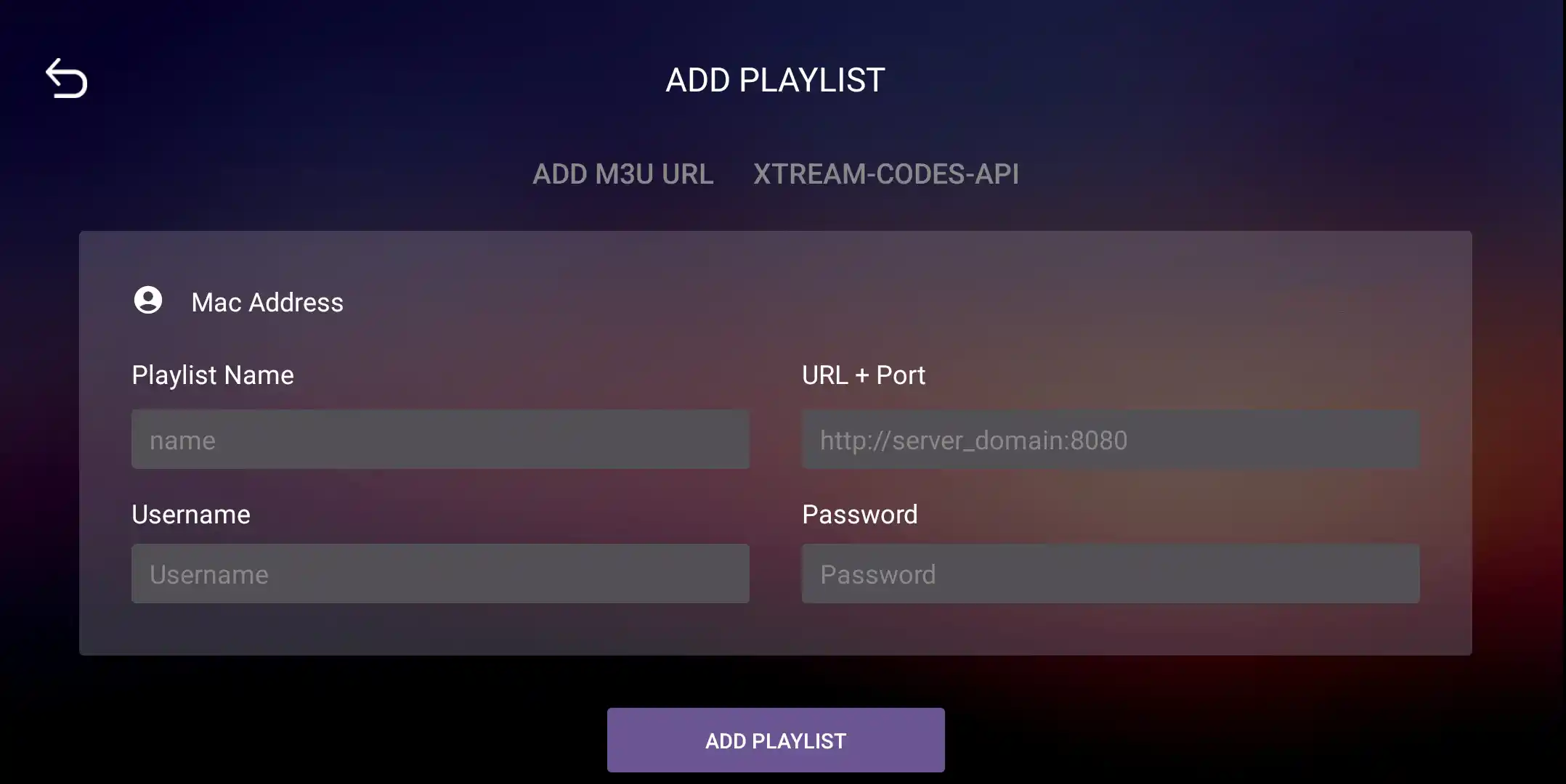
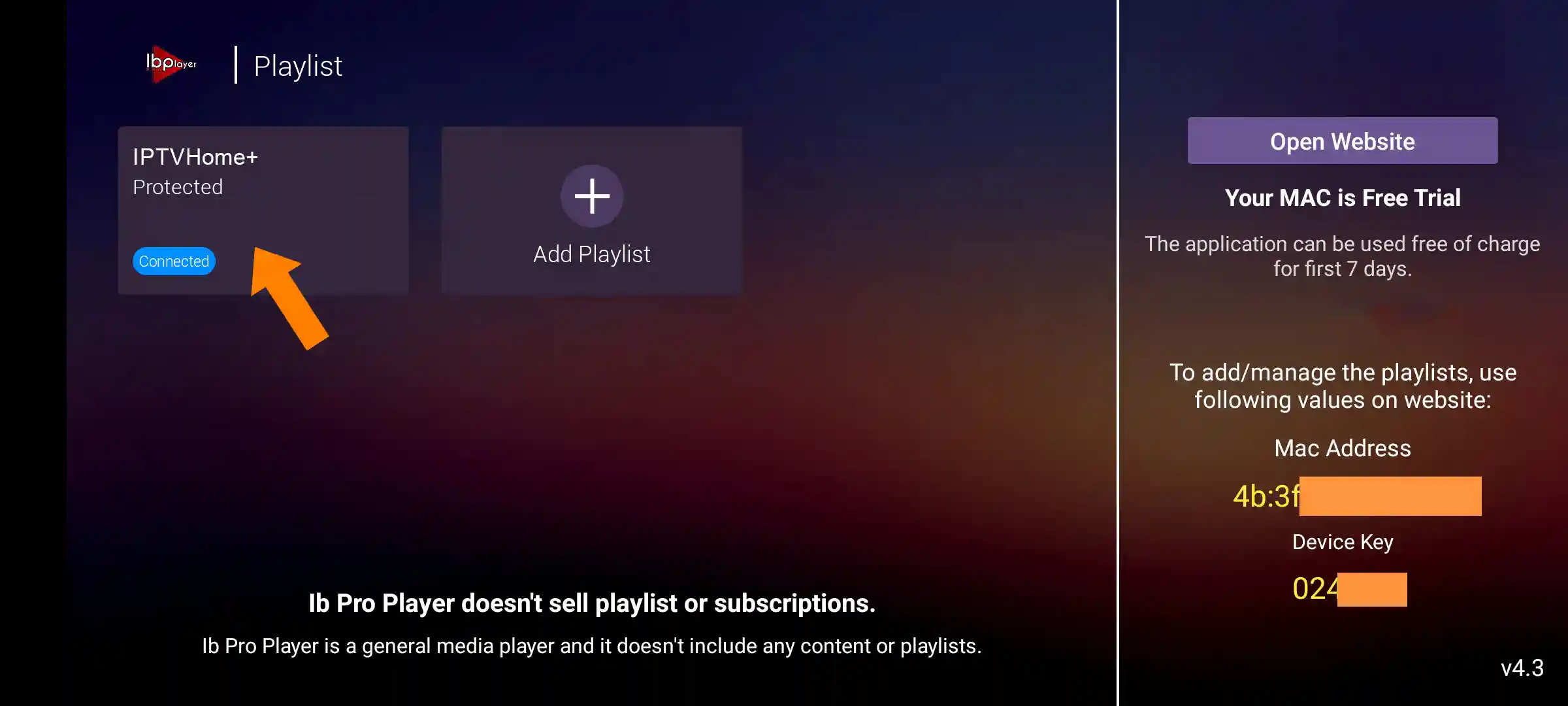
Tap Add Playlist. You’ll be redirected to the M3U IPTV Playlists tab. Select our playlist (usually named Nordic IPTV), you’ll see it labelled as Protected. Tap on it, then press Connect. Your channels, movies and series will start loading automatically.
Having trouble? Send us a photo of your MAC Address and Device Key on Telegram or WhatsApp and our team will activate it for you instead.
Device menus and app-store labels can change. The Nordic support team can identify the next step from one clear photo and guide the rest with you.